


SmarterProctoring is a remote proctoring platform that provides a range of proctoring options for online exams. This service uses a single integrated proctoring interface for all students and faculty to access the proctoring services. Students taking online courses can schedule and reschedule their exams and take them using the Google Chrome web browser.
SmarterProctoring is intended for high-stakes exams (e.g., midterms, finals, etc.) in online courses only. High-stakes proctored exams should be scaffolded with non-proctored, low-stakes assessments in Canvas.
Note: SmarterProctoring and Respondus LockDown Browser do not work together.
Student Readiness Check and Scheduling Exams
Before requiring a high-stakes assessment using SmarterProctoring, faculty should direct students to complete the Readiness Check for Online Testing (SmarterProctoring Help) to ensure they are ready for the exam and to give them an opportunity to engage with the user interface beforehand.
Important Update: New Readiness Check Replaces Practice Exams
To save faculty setup time and provide students with a seamless onboarding experience, the Readiness Check for Online Testing now serves as the official replacement for student technology setup verification.
Please do not create or deploy practice quizzes/exams in SmarterProctoring, as they are no longer required and incur unnecessary charges for the institution. Use the Readiness Check instead, which automatically handles system verification and eliminates the need for separate practice exams.
What is the Readiness Check?
The Readiness Check is a quick practice run that simulates the onboarding process using the exact proctoring settings configured for an upcoming exam. It verifies the student's computer, webcam, microphone, browser, and internet connection to ensure technical readiness prior to test day. It does not connect to or record an actual exam session, carries no academic consequences, allows students to identify and resolve technical issues early, and provides unlimited attempts.
To ensure students have enough time to complete the Readiness Check, it is recommended that exams be set up with SmarterProctoring at least 2 weeks before the exam dates.
Preventing Live Proctoring Scheduling Issues
To prevent scheduling issues for live proctored exams (Live Online, Testing Centers, or Approved Proctors), you should provide students:
- An advanced scheduling window (exam added to SmarterProctoring and scheduling available two weeks or more before exam dates).
- More than 24 hours to complete the exam.
- Multiple proctoring modalities (e.g., Live Online, Testing Centers, and/or Approved Proctors).
- Note: Written/in-person exam proctoring can be an option for online students, but it cannot be a requirement.
Proctoring Types/Modalities
At least one Virtual Proctoring option (Automated Online Proctoring, Automated Online Proctoring with Review, or Live Online Proctoring) is required. As a reminder, a written/in-person exam can be an option, but it cannot be required by the instructor (Testing Centers and/or Approved Individuals).
Providing multiple proctoring types/modalities reduces your administrative workload by eliminating the need to manually accommodate a different modality based on a student's needs (e.g., a student with a poor internet connection could schedule an in-person proctored exam without requesting it or requiring you to provide an accommodation within SmarterProctoring for that individual for the exam). Details regarding each proctoring modality are listed below.
- Automated Online Proctoring
- No appointment is required; available 24/7/365 and on demand by students.
- Artificial Intelligence (AI) will review the video to ensure the exam instructions are followed and flag potential violations for your review.
- Requires the Chrome web browser and a webcam.
- Automated On-Demand Proctoring is not available for written, paper-and-pencil exams.
- Automated Online Proctoring with Review
- Same as Automated Online Proctoring, except a SmarterProctoring professional will review the AI-flagged violations from the session before your review.
- Live Online Proctoring
- An appointment is required.
- Students make an appointment via SmarterProctoring to take their exam with a live proctor. A trained proctor from SmarterProctoring will monitor their exam session virtually.
- Requires the Chrome web browser and a webcam.
- Live Online Proctoring is not available for written, paper-and-pencil exams.
- An appointment is required.
- Students can make an appointment at an ODU testing center or other ODU-approved testing centers to take their exam in a proctored environment at that location.
- An appointment is required.
- SmarterProctoring has a network of proctors who will be visible to students based on their location if this option is enabled for the exam. In addition, other individuals can act as proctors in an appropriate setting, provided ODU, the instructor, or both approve them. Proctors must be neutral people who are not related to, friends with, or in a financial relationship with the student.
- If a student cannot find a proctor from the available options, they may request an Ad Hoc Proctor (ODUGlobal); however, this request may take up to five business days for a proctor to be assigned after submission.
- An appointment is required.
- You may serve as a proctor for your exam by selecting the option and providing the location(s), date(s), and time(s) of your availability.
Best Practices
- Add SmarterProctoring to the Course Navigation Menu for you and your students, and hide the Quizzes index page from your students.
- Setting Up SmarterProctoring in Canvas (Panopto; requires MIDAS login)
- How do I manage Course Navigation links? (Instructure Community)
Your quiz should not be added to any module, as your students must access it from the SmarterProctoring Course Navigation link.
While SmarterProctoring works with both Canvas Classic and New Quizzes, it is essential to provide students with a consistent user interface/quiz type (Classic Quizzes or New Quizzes) throughout your course.
It is highly recommended that you use New Quizzes. Classic Quizzes will sunset in the future, and the quiz timer becomes hidden when they scroll down to additional questions, whereas the New Quizzes timer stays docked at the top of the page.
To prevent unauthorized access to your exams, when creating or reusing exams from term to term, ensure each exam you plan to have proctored has a unique access code/password set in the quiz restrictions/options.
If a student needs a different exam availability window to complete their assessment, the steps required to provide it vary depending on how the exam was added to SmarterProctoring.
How do I know if my Quiz/Exam is Connected?
In Canvas, select SmarterProctoring from the Course Navigation Menu. If a cloud icon with a down arrow appears to the right of your exam name, the exam is connected; if the icon is missing, it was added manually.
Image
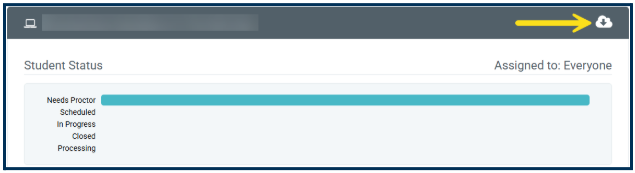
- Connected/Imported Canvas Quizzes: SmarterProctoring automatically pulls availability dates and due dates directly from Canvas. Therefore, if you add additional dates (Instructure Community) for a student(s) in Canvas, they should automatically sync with SmarterProctoring without any additional steps. To ensure changes are reflected, you can manually sync the course by following the steps outlined in the How to Manually Sync Connected Exams SmarterProctoring Help guide.
- Manually Added Canvas Exams & Third-Party Assessments: For manually added exams in SmarterProctoring (e.g., third-party platform assessments such as McGraw-Hill, Pearson, Cengage, or Canvas exams you were unable to connect/import), two steps are required: instructors need to update dates in both platforms, third-party or Canvas, and SmarterProctoring. Within SmarterProctoring, you can enable the Custom Exam Assignment (SmarterProctoring Help), which allows you to tailor exam availability dates and scheduling windows for specific students.
Accommodations must be added before a student schedules an exam.
- Quiz/Exam Duration (e.g., time-and-a-half): If a student needs a duration accommodation (e.g., time-and-a-half), it must be added before in both platforms, first in Canvas, and then in SmarterProctoring.
- Permitted Items (e.g., Google Chrome Live Captions): If a student is allowed different permitted items for the exam, an accommodation only needs to be added to SmarterProctoring.
Guides for adding accommodations:
- New Quizzes: How do I add accommodations for a student in New Quizzes? (Instructure Community)
- Classic Quizzes: Once I publish a quiz, how do I use the Moderate Quiz page? (Instructure Community)
- SmarterProctoring: Add/Edit Accommodations (SmarterProctoring Help)
Student Scheduled Before Accommodation Added?
If a student schedules their exam before an accommodation has been added, the following steps are required:
- Student Cancels Current Session.
- Important: This may result in the student losing their appointment time for any modality that requires an appointment (Live Online, Testing Centers, or Approved Individuals), which is why it's imperative that accommodations are added as soon as possible after an exam has been added to SmarterProctoring.
- Instructor Adds the Accommodation to Canvas & SmarterProctoring: Once their session has been canceled, ensure the accommodation has been added to Canvas and SmarterProctoring.
- Student Reschedules Exam: Once the accommodation has been added to both Canvas and SmarterProctoring, the student can reschedule their exam.
- Advise students to schedule exams early in the semester.
- Direct students to complete the Readiness Check for Online Testing in advance of their test date, not on exam day, to ensure any technical issues can be resolved beforehand.
- Remind students of SmarterProctoring’s Live Support chat feature.
- Creating Quizzes Resources:
- How do I create a quiz using New Quizzes? (Instructure Community)
- How do I create a quiz with individual questions? (Classic Quizzes) (Instructure Community)
- Setting Required Quiz Settings/Options
- New Quizzes: How do I manage settings for a quiz in New Quizzes? (Instructure Community)
- Require Student Access Code (should be unique for each exam and each term)
- Set Time Limit
- Allow Multiple Attempts (select Limited from the dropdown menu and identify the number of attempts allowed)
- To reduce your administrative workload and account for technical problems such as a loss of internet connection or power, it is recommended to allow at least two attempts (adding additional attempts after an exam is deployed requires your intervention when a student requests them in both Canvas and SmarterProctoring). You can instruct proctors that the second attempt should only be used if there's a problem.
- Classic Quizzes: What options can I set in a quiz? (Instructure Community)
- Set Time Limit
- Allow Multiple Attempts
- To reduce your administrative workload and account for technical problems such as a loss of internet connection or power, it is recommended to allow at least two attempts (adding additional attempts after an exam is deployed requires your intervention when a student requests them in both Canvas and SmarterProctoring). You can instruct proctors that the second attempt should only be used if there's a problem.
- Set Quiz Restrictions: Require an access code (should be unique for each exam and each term)
- New Quizzes: How do I manage settings for a quiz in New Quizzes? (Instructure Community)
- Publishing a Quiz: How do I publish or unpublish a quiz as an instructor? (Instructure Community)
- Navigate to your Canvas course.
- Select the SmarterProctoring link from your Course Navigation Menu. This action will open the SmarterProctoring interface within Canvas.
- Click New Exam in the upper right corner of the window > Locate the exam you want to connect from the list > Click Connect to the right of the exam title.
- Note: If an exam is missing a piece of information that prevents it from being connected, it will be noted on the right. If you wish to make the necessary corrections quickly, clicking the quiz name opens the editing page in a new tab.
- The Exam Details page allows you to verify that your exam settings and information were imported correctly from Canvas, you can add a scheduling window, and add up to 5 PDF attachments (maximum total file size of 4 MB). When finished, click Continue.
- On the Permitted Items page, toggle selections on/off to identify items that will be permitted for the exam, then click Continue.
- On the Notes page, you can provide details for both students and proctors. When finished, click Continue.
- On the Proctor Settings page, select the Proctor Types (modalities) allowed and enable or disable the Lock Down Options (SmarterProctoring Help) to meet your needs. See details regarding Room Scans and SecureSession App options below. When finished, click Complete.
- At least one form of Virtual Proctoring (Automated Online Proctoring, Automated Online Proctoring with Review, or Live Online Proctoring) should be selected.
- As a reminder, a written/in-person exam can be an option, but it cannot be required by the instructor (Testing Centers and/or Approved Individuals).
- At least one form of Virtual Proctoring (Automated Online Proctoring, Automated Online Proctoring with Review, or Live Online Proctoring) should be selected.
- On the Confirmation page, review the information, then select Confirm if correct, or select Back if any changes are required.
- If a student needs any accommodations (e.g., time-and-a-half), they must be added before scheduling their exam in both Canvas and SmarterProctoring. See the Best Practices section above for more information on providing accommodations.
Manually Sync Connected Exams
Connected exams are automatically synced with Canvas. However, if there is a time when you want to ensure changes (e.g., exam assignments or student details) are updated manually, you can follow the steps outlined in the SmarterProctoring Help guide: How to Manually Sync Connected Exams.
Can’t Connect Your Canvas Quiz/Exam?
If you’re unable to connect your Canvas quiz/exam using the process outlined above, you can manually add it to SmarterProctoring by following the steps outlined in the SmarterProctoring Help guides:
Publisher Assessments
If you’re using publisher assessments, you can manually add them to SmarterProctoring by following the steps outlined in the Exam Setup Guides from SmarterProctoring Help:
Lock Down Options: Room Scans & SecureSession App
If you choose to enable this option, students will need to use their webcams to show their testing environment. ODU policy mandates that exams be taken at a desk or table. If you prefer, you can specify in the proctor notes in SmarterProctoring that students should only show their desk area.
If you choose to use the SecureSession App (SmarterProctoring Help) for your exam, please advise students that they must use either a Mac or a Windows computer. The SecureSession App does not support Chromebooks or mobile devices. Students will be required to download and install this app during their exam session onboarding.
SmarterProctoring Resources
For Faculty
- SmarterProctoring Help Center:
- SmarterServices Support
For Students
- ODUGlobal SmarterProctoring Student Guide (ODUGlobal)
- Exams and Proctors (ODUGlobal)
- Student Testing Experience (SmarterProctoring YouTube)
- Student Onboarding Demo (SmarterProctoring YouTube)
- SmarterProctoring Help Center:
- SmarterServices Support
SmarterProctoring Support
Faculty and students should reach out to SmarterProctoring for support first, as they are available 24/7 and have access to troubleshoot in different ways, given their access.
- Urgent issues: Use the chat feature (Chat is available when logged into your SmarterProctoring account) in the SmarterProctoring system to talk to someone immediately
- Non-urgent help: Email support@smarterservices.com
- Faculty should carbon copy Sean Doty (sean@smarterservices.com)
If SmarterProctoring support cannot resolve the issue, submit an IT Help Desk ticket or email ithelpdesk@odu.edu with details regarding the issue.