
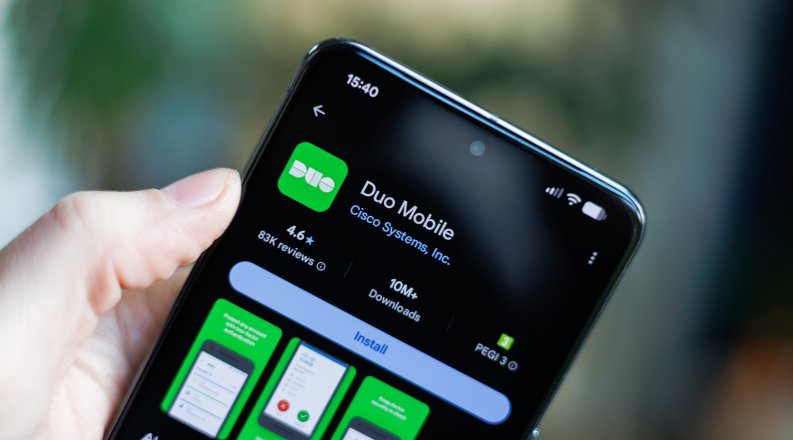


Beginning February 2, 2026, Duo will require version 4.85.0 or higher of the Duo Mobile app in order to use the Duo Push (or Verified Push) authentication method.
If you are unable to update to the latest version of Duo, see below for instructions on how to continue accessing your account by using the Duo Mobile passcode and/or other options instead of Duo Push.
To update Duo Mobile:
Recent versions of Duo Mobile require iOS 17 or later. If you have an older version of iOS, see Apple's instructions for updating your device: https://support.apple.com/en-us/118575
To update Duo Mobile:
Recent versions of Duo Mobile require Android 12 or later. If you have an older version of Android, see Google's instructions for updating your device: https://support.google.com/android/answer/7680439?hl=en
The Duo Mobile app also supports another authentication method called Mobile Passcode, which will continue to work after February 2, 2026.
Alternatively, if you are running Android 8-10, you can sideload the DUO Mobile APK to your device to continue to use verified push. See this Duo Mobile Article on how to sideload on your device.
APK for Android 8 & 9: https://dl.duosecurity.com/DuoMobile-4.33.1.apk
APK for Android 10: https://dl.duosecurity.com/DuoMobile-4.57.1.apk
The Duo Mobile passcode can be used as an alternative to verify, especially when there is no internet connection to receive a push notification. To use the Duo Mobile passcode:
If you have any additional questions or need more help, please contact the IT Help Desk at 757-683-3192, or at ithelpdesk@odu.edu.