

Why Not Make All Content Accessible?
There are more than a billion people with disabilities worldwide and approximately 13% of the people in the U.S. Disability does not mean a personal health condition, but rather a mismatch between a person’s abilities and their environment. Forward focused organizations want their content to be inclusive and accessible for all.
Alt text, captions, and transcripts for all multimedia housed on odu.edu helps you reach a wider audience. Why not make sure your content in front of the most eyes?
Top 3 Must-Haves
- Clear alt text for every image
- Readable visual design for graphics
- Accessible multimedia (captions and transcripts)
What is Alt Text?
Alt text describes the content and purpose of an image for people who use screen readers. It serves as a written replacement for the image, helping users of assistive technology understand what the image shows and why it matters.
Best Practices for Writing Alt Text:
- Every image in your posts should have alt text. Why? It supports more inclusive engagement and helps reach a wider audience.
- Understand your image's purpose. Consider how the image adds meaning to your message then put that into words.
- Describe who is doing what and where. Keep your wording clear and informative, and avoid phrases like “image of” or “picture of,” since screen readers already identify images automatically.
- Keep it short and sweet. Long alt text creates a poor experience for those using screen readers.
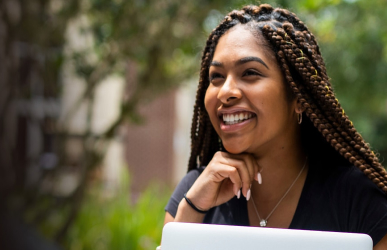
Alt Text Example
Take a look at the image on the left and try writing alt text for it. Then click the tabs below to see how your description compares.
These are either too vague or too long.
- Image of a woman.
- Student sitting outside with a laptop, resting her chin on her hand with white fingernail polish while looking off to the side. Tress and other greenery softly blurred around her.
- Person smiling outside.
- A smiling student sitting outside with her laptop.
- Person sitting outside surrounded by greenery with their laptop and smiling.
Infographics
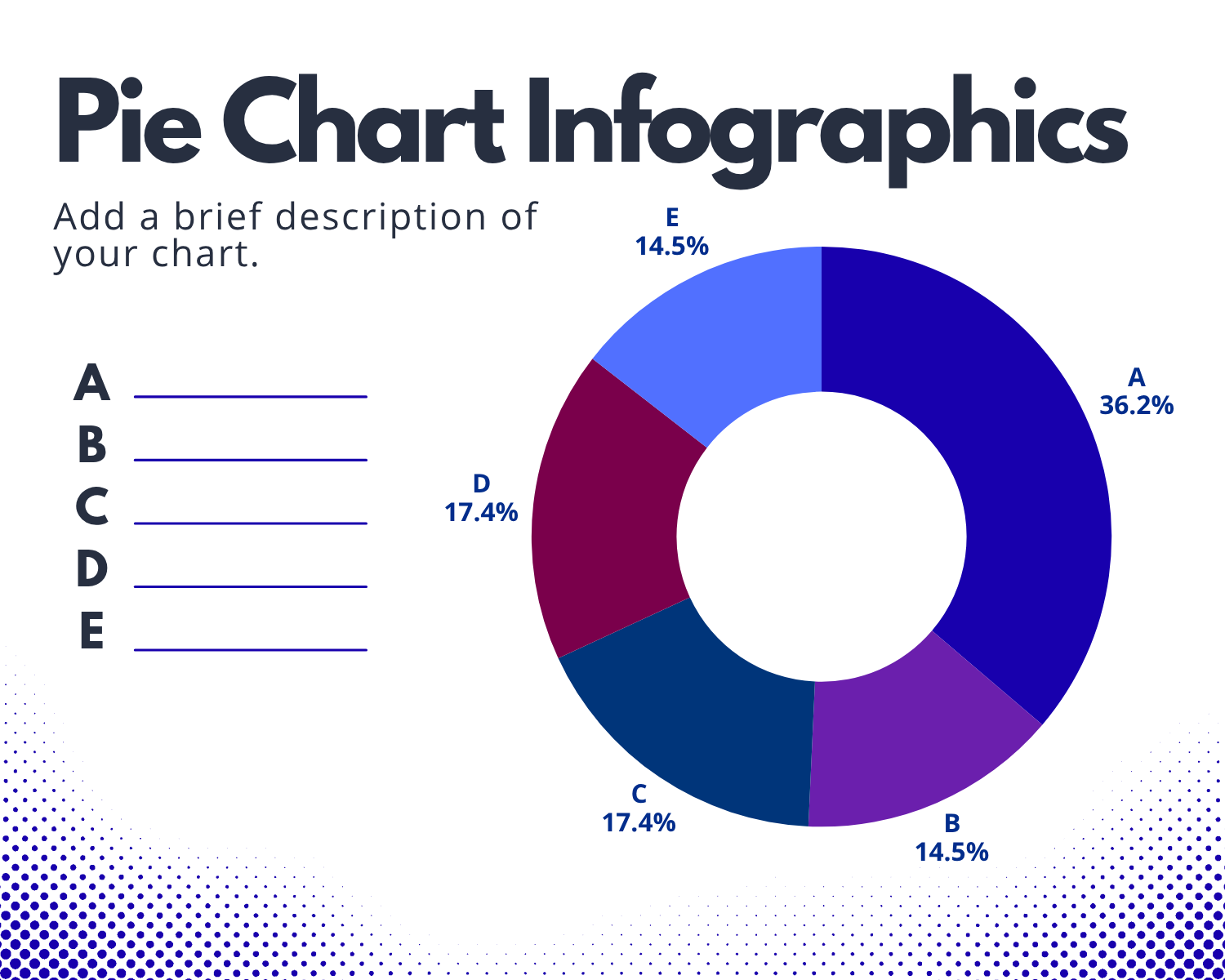
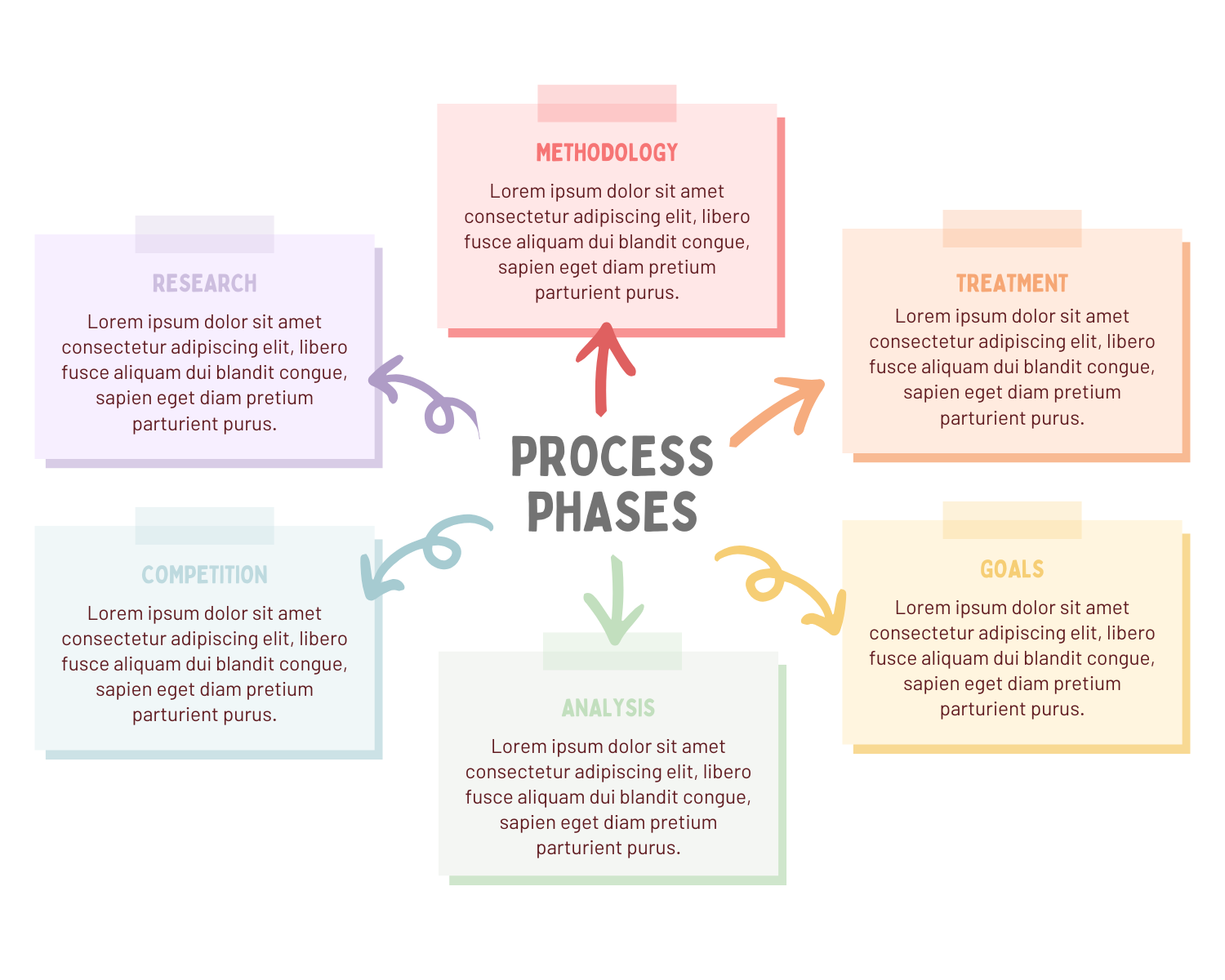
Infographics are visual by nature, so it is important to include alt text or a text description that explains the key information and meaning shown in the graphic. Make sure your infographic is clear and easy to understand. Avoid overly complex layouts or crowded designs that are difficult to follow. Use strong color contrast and readable text to improve accessibility and readability online.
Simple Rule: If the infographic contains important information, that information should also be available in text form.
Video Captions & Transcripts
Multimedia content (podcasts, videos, live-streamed events) must be accessible to all users when placed on odu.edu. You must provide transcripts and captions that clearly convey essential on-screen information. This doesn't just benefit deaf or hard-of-hearing users. They’re widely used by hearing audiences as well for things like watching videos in noisy places, on mute, or to improve comprehension and focus.
Definitions
Captions provide a text representation of a video’s audio, synchronized with the spoken content. There are two main types: closed captions and open captions.
Closed captions can be turned on or off by the viewer, while open captions are permanently displayed on the video. Well-captioned videos can also be indexed by search engines, which may improve discoverability and SEO.
Video captions support a wide range of users, including those who:
- Are in noisy environments
- Have difficulty understanding accents or fast speech
- Prefer reading along while listening
- Speak a different language
- Are deaf or hard of hearing
- Need to watch videos with the sound off
A transcript is a written record of media content, capturing all spoken audio and relevant non-speech information. Transcripts help make audio accessible to deaf or hard-of-hearing users and can also serve as a foundation for creating video captions.
Transcripts support users who:
- Have hearing loss or auditory processing differences
- Process information differently due to cognitive disabilities
- Speak a different language than the content is presented in
- Prefer to skim and read for better comprehension
- Have limited data or slow internet connections
- Are unable to play audio in their environment
If the content is not hosted by an ODU affiliated account then the following disclaimer must be noted.
"This video is hosted and maintained by an individual or organization not affiliated with Old Dominion University. Although ODU does not control the accuracy of the automated closed captioning, a human-generated alternative transcript may be available: [insert transcript]"
How To Add Captions
To add captions to YouTube videos, go to YouTube Studio, select "Subtitles" from the left menu, and choose your video. Click "Add Language" and select "Add" under Subtitles to upload a file, auto-sync a transcript, or type manually. You can also edit automatically generated captions by selecting "Duplicate and Edit" for better accuracy.
To add captions to Panopto, hover over your video, click Edit, navigate to the Captions tab on the left, and choose Import automatic captions for AI-generated text, or Upload or request captions for custom files. Automatic captions can be edited by clicking on the text, and you must select Apply.
Visit the Social Media policy page for information on how to add alt text and captions to posts.
To add captions to YouTube videos, go to YouTube Studio, select "Subtitles" from the left menu, and choose your video. Click "Add Language" and select "Add" under Subtitles to upload a file, auto-sync a transcript, or type manually. You can also edit automatically generated captions by selecting "Duplicate and Edit" for better accuracy.
To add captions to Panopto, hover over your video, click Edit, navigate to the Captions tab on the left, and choose Import automatic captions for AI-generated text, or Upload or request captions for custom files. Automatic captions can be edited by clicking on the text, and you must select Apply.
Visit the Social Media policy page for information on how to add alt text and captions to posts.